
Printing guide
How to print a PDF as a booklet
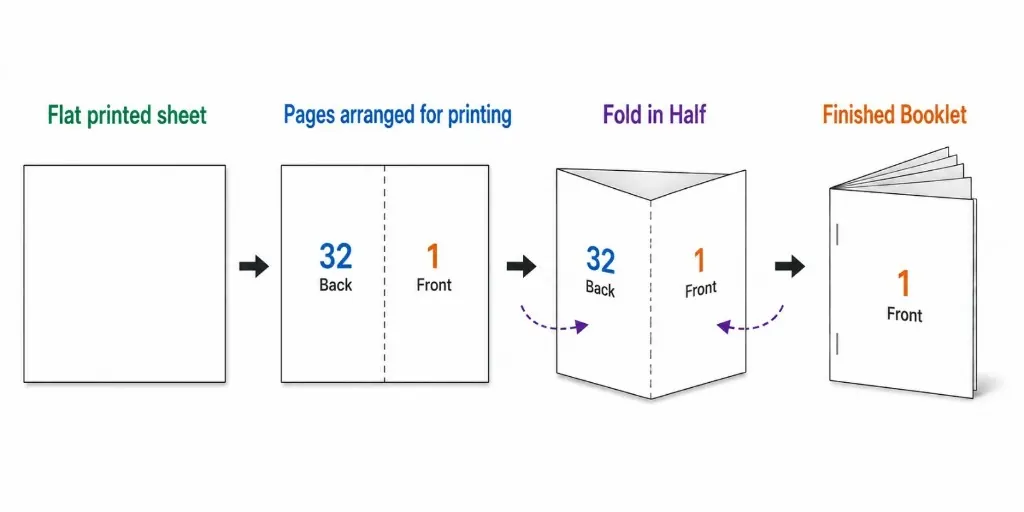
To print a PDF as a booklet, first make sure the PDF is in the booklet layout. Then choose double-sided printing and select short-edge binding in your printer settings. This keeps the pages in the right direction when you fold the paper in half.
If your booklet is coming out upside down or the pages are in the wrong order, don't worry. The fix is usually just one printer setting.
Quick settings to print a PDF as a booklet
If you just want the settings, use these:
- Two-sided printing: On
- Flip: Short edge
- Paper size: Use the same size you chose for your booklet
- Scale: Actual size or 100%
These settings will give you the correct result when you fold the printed pages in half.
How to convert your PDF to booklet layout first
Before printing, your PDF needs to be arranged for booklet printing.
A normal PDF has pages in reading order, like 1, 2, 3, 4. A booklet PDF puts the pages in a different order so they are correct after you print and fold the paper.
If you haven't made a booklet PDF yet, use our free PDF to booklet converter first. It will arrange the pages for you.
Already have a PDF booklet? You can skip this part and go straight to the printing steps.
How to print a PDF as a booklet
Once your PDF is ready, follow these steps.
1. Open the PDF and click Print
Open your booklet PDF in your PDF app and click Print.
2. Turn on two-sided printing
Find the option called Two-sided, Duplex, or Print on both sides and turn it on.
3. Choose short-edge printing
Look for an option such as Flip on, Binding, or Page orientation. Choose Short edge.
Do not choose Long edge. With long-edge printing, the back of the page may come out upside down.
4. Check the paper size
Make sure the paper size matches your booklet PDF. For example, use A4 paper for an A4 booklet or Letter paper for a Letter booklet.
5. Set the scale to Actual Size
Choose Actual Size or 100% if your printer gives you this option. Avoid Fit to Page if you want the booklet to keep its original size.
6. Print one sheet first
If you're unsure about the settings, print one sheet first. Fold it in half and check that the pages are facing the right way.
If everything looks good, print the rest.
7. Fold and staple
Fold the printed sheets in half and staple them along the middle fold. Your PDF is now a booklet.
Why does my booklet print upside down or in the wrong order?
If your booklet prints upside down, check the two-sided printing setting first. Your printer may be flipping the paper on the wrong edge.
For booklet printing, choose Short Edge when you see a Flip on or Binding option. If Long Edge is selected, the back of the pages may come out upside down.
If the pages are in the wrong order, make sure you convert your PDF to booklet layout before printing.
How to turn on short-edge printing
The exact location of this setting depends on your printer, but you can usually find it in the printer settings when you click Print.
On Windows
Click Print, then open Printer Properties, Preferences, or a similar option. Look for Layout, Finishing, Flip on, or Binding. Choose Short Edge.
On Mac
Open the Print window and look for the Layout settings. Turn on Two-Sided printing and choose Short-Edge binding if the option is available.
Can't find the setting?
Search for your printer model together with “short-edge printing” or “short-edge binding.” Printer brands may use different names for the same setting.
Printing a booklet at home, school, or at a print shop
The easiest method depends on the printer you're using.
Home printer
You usually need to turn on two-sided printing and choose Short Edge yourself.
Office or school copier
Some copiers have a Booklet option. If you see it, select it and follow the instructions on the screen.
Print shop
Tell the staff that you want your PDF printed as a booklet. They can usually handle the booklet settings for you.
Common booklet printing problems
Blank pages appear
A booklet needs a page count that works with folded sheets. If your PDF doesn't have enough pages, blank pages may be added so the booklet folds correctly.
Some content is cut off
Your original PDF may have content too close to the edges. Leave some extra space around the edges before converting and printing.
The pages are too small or too large
Check the Scale setting. Choose Actual Size or 100% instead of Fit to Page or Shrink to Fit.
Colors or images look faded
Check your printer's quality setting. If it is set to Draft or Economy, switch to Normal or a higher quality setting.
Pages are in the wrong order
Make sure you created a booklet PDF before printing. A normal PDF with pages 1, 2, 3, 4 is not arranged for booklet printing. Use a PDF to booklet converter first, then print the new file.
Frequently asked questions
Why do some pages print upside down when I print my booklet?
This usually happens when Long Edge is selected instead of Short Edge for two-sided printing. Choose Short Edge to keep the pages facing the right way.
What is short-edge binding and why does it matter for booklets?
Short-edge binding tells your printer to flip the paper along its shorter side. This keeps the pages facing correctly when you fold the booklet.
Can I print a booklet on a regular home printer?
Yes. A regular home printer can print booklets as long as it supports two-sided printing, either automatically or manually.
Do I need special paper to print a booklet?
No. Regular printer paper works fine for booklets, with A4 and Letter being common choices.
Why are my booklet pages out of order after printing?
Your PDF may not be arranged in booklet order before printing. Convert it to a booklet layout first, then print it using the correct settings.
What if my printer doesn't support double-sided printing?
You can print the two sides manually by printing one side first, turning the paper over, and printing the other side.
How do I print a PDF as a booklet on a Mac vs Windows?
The basic steps are the same on both systems: turn on Two-Sided printing and choose Short Edge in the print settings.
Can I print a booklet directly from Word instead of a PDF?
Yes. Word has a Book fold option that lets you arrange a document for booklet printing.
Final thoughts
Printing a PDF as a booklet is easier than it may seem. Make sure your PDF is in booklet layout, turn on two-sided printing, choose Short Edge, and check the paper size before you print.
If you're unsure, print one sheet first. Once it looks right, print the rest, fold the pages, and you're done.